

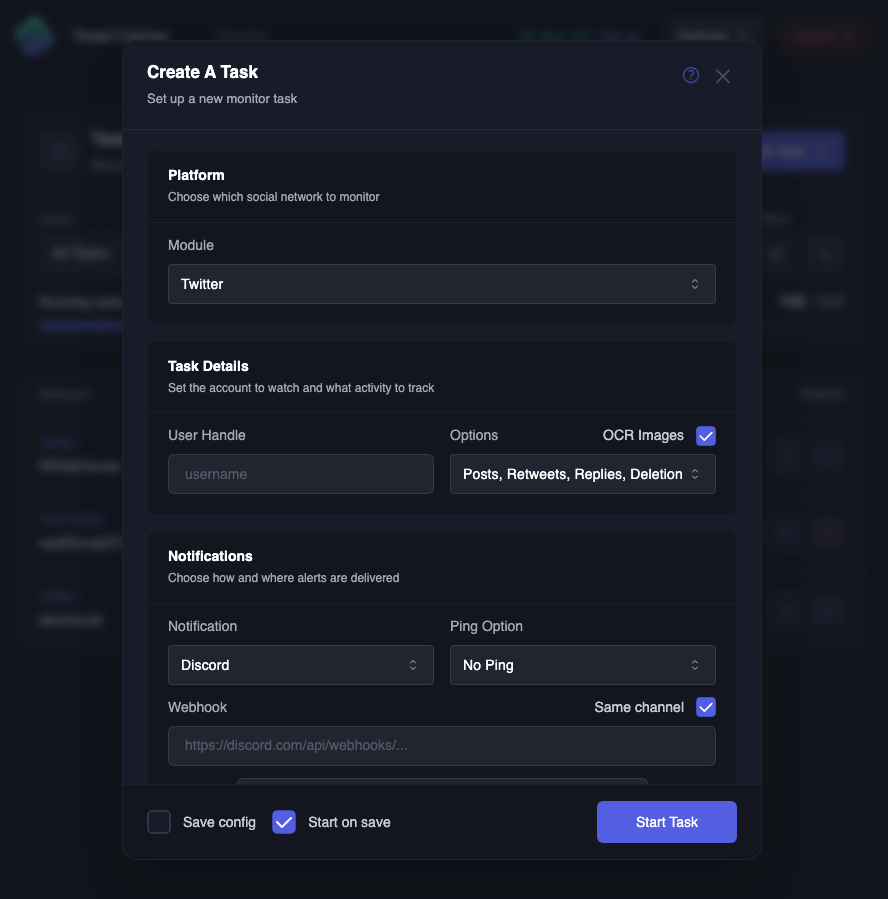
1
Platform
Pick what to monitor and enter the handle or keyword query
2
Options
Choose which events fire a notification
3
Notifications
Choose where events are delivered
4
Organization and advanced options
Optionally add the task to a group and fine-tune filters
5
Save
Save the task stopped, or start it right away
Platform
Twitter Global requires the Twitter Global add-on to be active on your account
Twitter Global queries
Twitter Global watches every post that matches a keyword query, instead of a single account. Combine terms withOR, AND, and NOT, and group them with parentheses:
Terms can’t contain
|, (, or ). A query that doesn’t follow this shape is rejected
Twitter options
Select at least one option. Indented options depend on the one above them, so turn that one on firstReplies from
@grok aren’t sent to Discord or Telegram because of the excessive amount of spam they generateNotifications
Choose where the task delivers its events. For step-by-step setup of each destination, see NotificationsSeparate destinations per event
Same channel is checked by default, so every event goes to one webhook or chat. Uncheck it to set a separate destination for posts, following, unfollows, user updates, and deletions. This is useful when you want, for example, posts in one Discord channel and profile changes in anotherDiscord pings
To ping only for posts you care about, combine a ping option with ping keywords or a regex
Advanced options
Click Advanced Options to open a second modal with extra filters, then click Apply Changes to add them to the task. Which fields appear depends on the task’s options and notification typePing keywords
Each keyword in the comma-separated list can carry a prefix:+wordpings only when the post containsword. A keyword without a prefix is treated as+word++wordpings only when the post specifically containsword, not as part of another word-wordsuppresses the notification when the post containsword
+launch, +mint, -giveaway pings on posts about a launch or mint and drops posts that mention a giveaway. ++launch pings only when the post contains launch as a standalone word, not as part of another word like launching. Leave the field empty to ping on every post
With Use regex on, enter a single regular expression instead, either as a bare pattern or as /pattern/flags, for example /\b(launch|mint)\b/i. An invalid pattern is rejected when you save
Organization
Group adds the task to a label so you can filter the task list by it. Pick an existing group, No Group, or New Group to create oneSave
If the new task duplicates one you already have, you’re asked to confirm its creation
Each running task uses one slot of your running limit. See Running limit